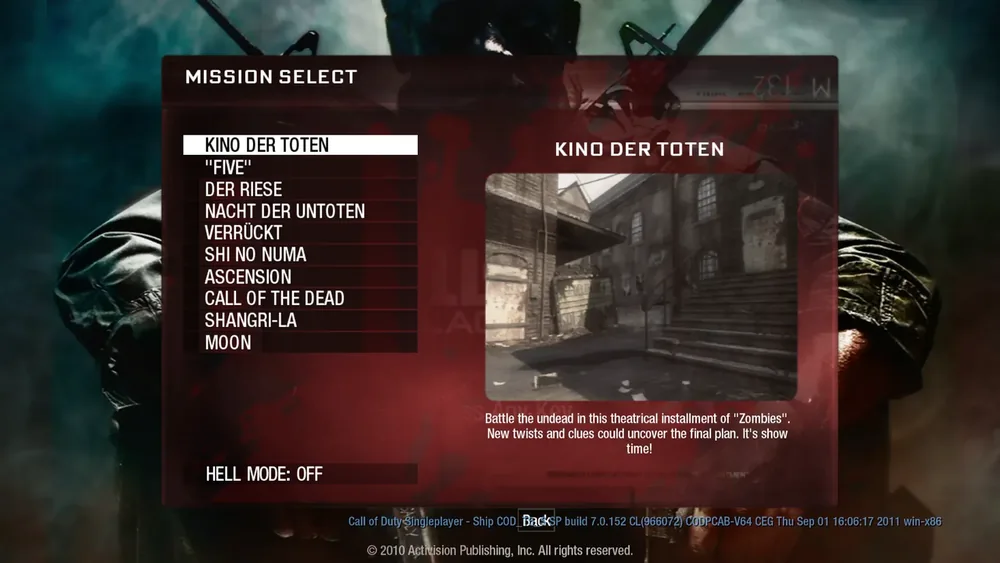
Look at where startup stops: opening the project, downloading resources, selecting files or entering the game. That points to the next step and helps you keep saves intact while troubleshooting.
1. Open the right browser version
Use the project link on the game’s guide. Moon and Kino have map-specific BO1 pages, Urban Terror has its own multiplayer launcher, and Skate × Rust uses a separate mashup host. The GTA 5 source points to an archive with different loading requirements.
2. Let an active download finish
Watch the progress indicator or downloaded-byte count. Large first loads take time, and repeated reloads can restart them. Keep the tab open while progress changes. If it stays stopped, read the host’s help or community page for that project.
3. Complete the game-file import
A file picker needs the game’s documented format before it can continue. Halo’s desktop launcher asks for an XISO, while Vice City imports game.tar.gz. Use files prepared from your own copy and follow the import steps in the game guide.
4. Check graphics and input settings
Use the browser and device recommended by the project. For a black screen or slow rendering, start with its lower graphics preset. If the game loads but movement or aiming does not respond, click inside the game to focus it and open the host’s control settings. A keyboard-and-mouse game needs those inputs.
5. Keep saves before resetting anything
Export important progress before clearing the site’s data; a reset can also remove imported game files. If the host itself will not open, try again later or use its community page for an update. Resetting local storage cannot bring an offline host back.